Your service area helps determine where you can receive booking notifications on Blys.
By default, your service area can be based on your real-time GPS location. You can also add fixed service areas, either by setting a radius around a location or by drawing a custom area directly on the map.
You can add more than one fixed service area, which is helpful if you work across different suburbs, cities, regions, or regular travel areas.
For Web App
- Log into your Blys Pro account via our website > Pro Dashboard > Service Area
- Under the "Service area" section, you can update your preferred service area to:
- Real-time service area | Receive jobs based on your current location: This means you'll be notified of bookings near your current location. You can set up your notification radius to 10km, 20km, 30km, 50km, and 100km.
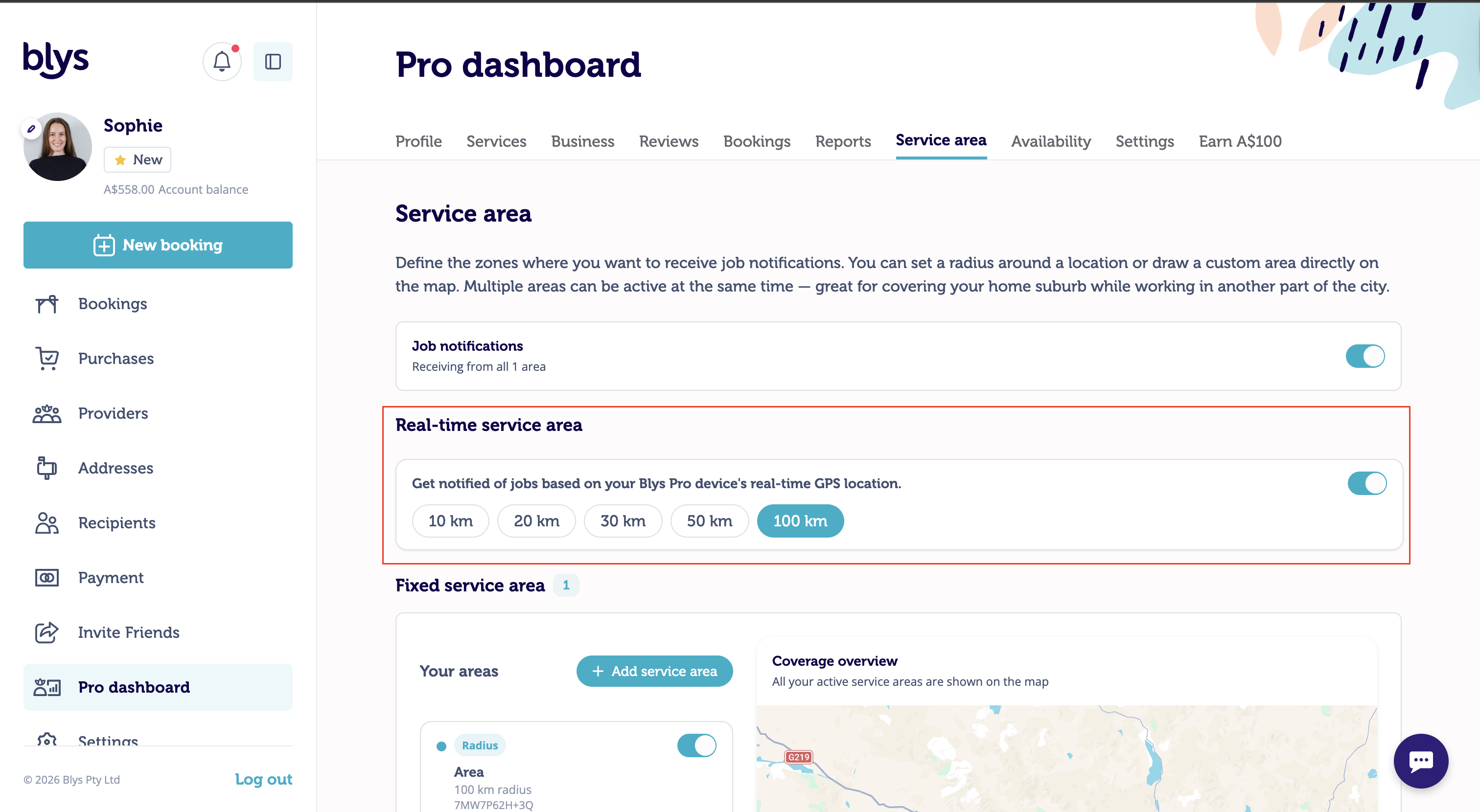
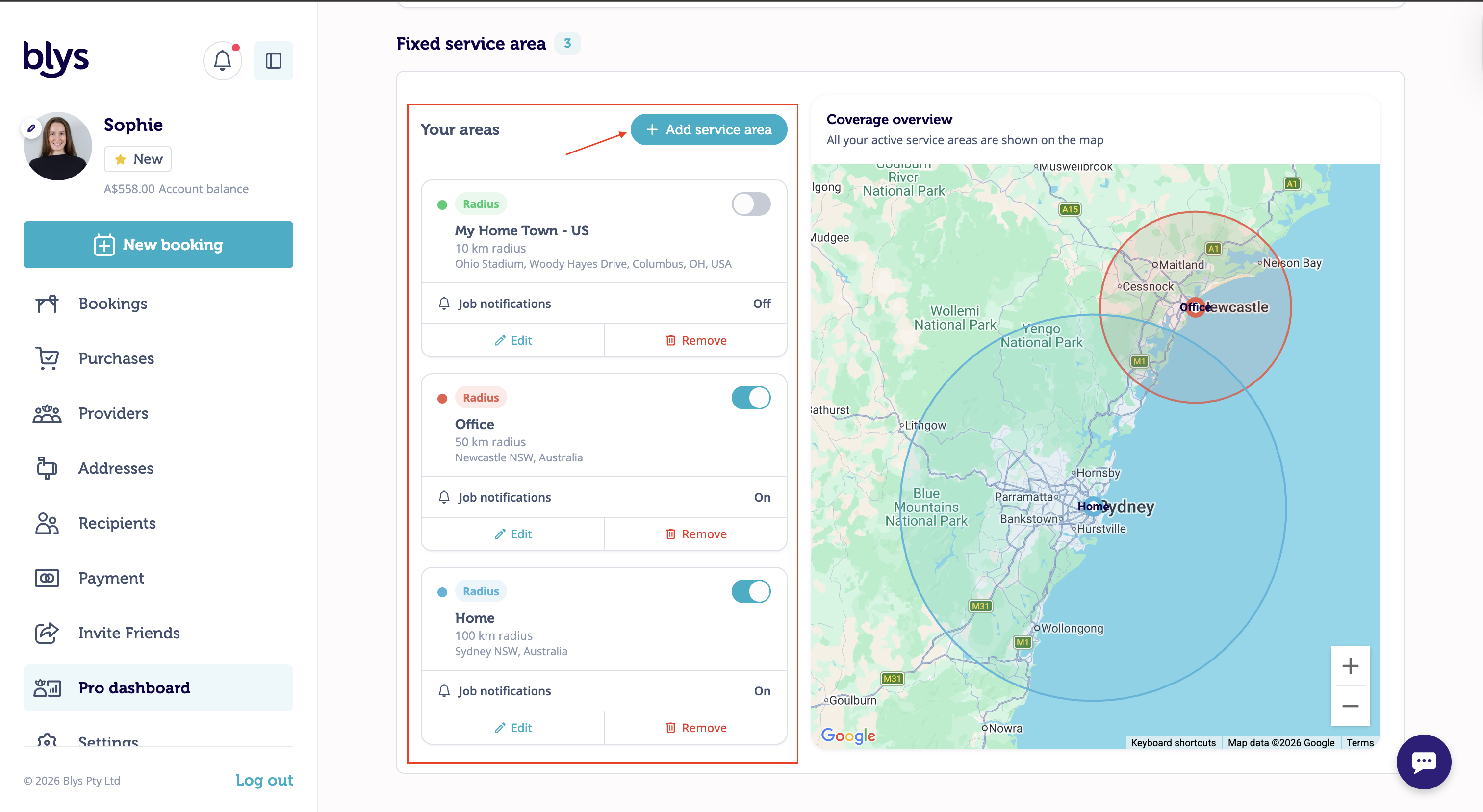
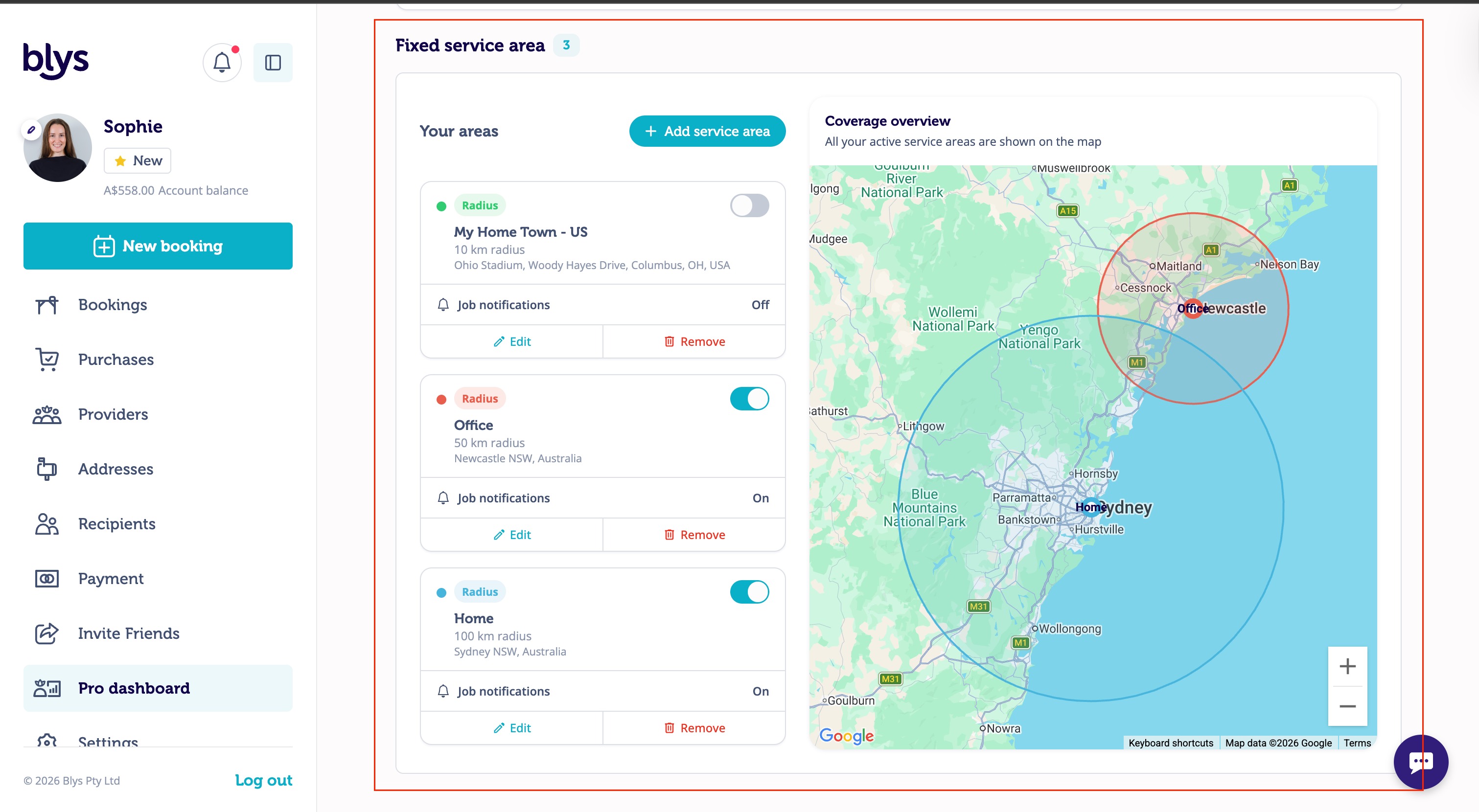
- Fixed service area | Receive jobs based on a fixed location: This means you'll be notified of bookings nearby your chosen location, even if you're on another job in a different city. You can add as many service areas as you like and it will appear in this section.
How to add fixed service area on a map
- Go to 'Fixed service area' and select 'Add service area'
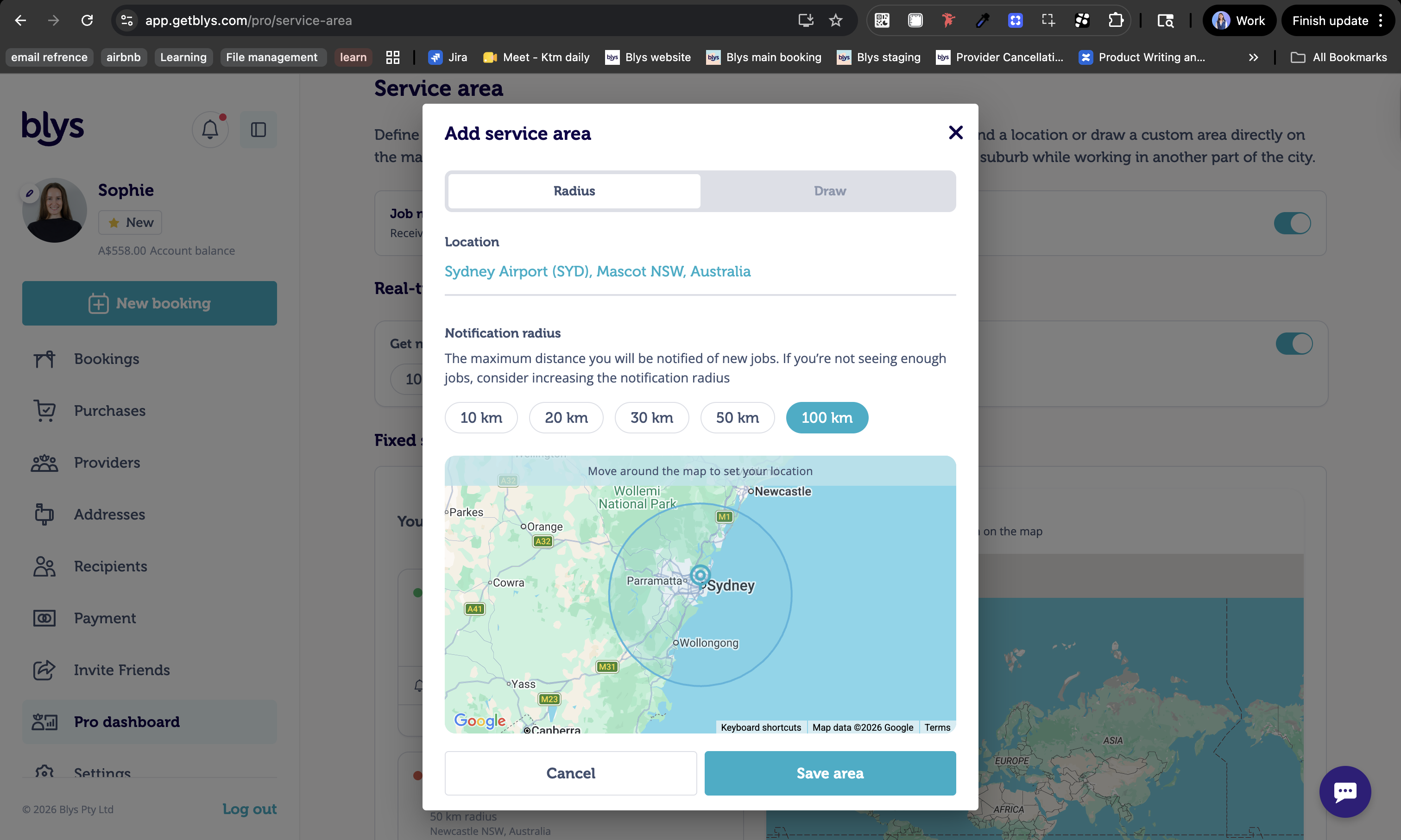
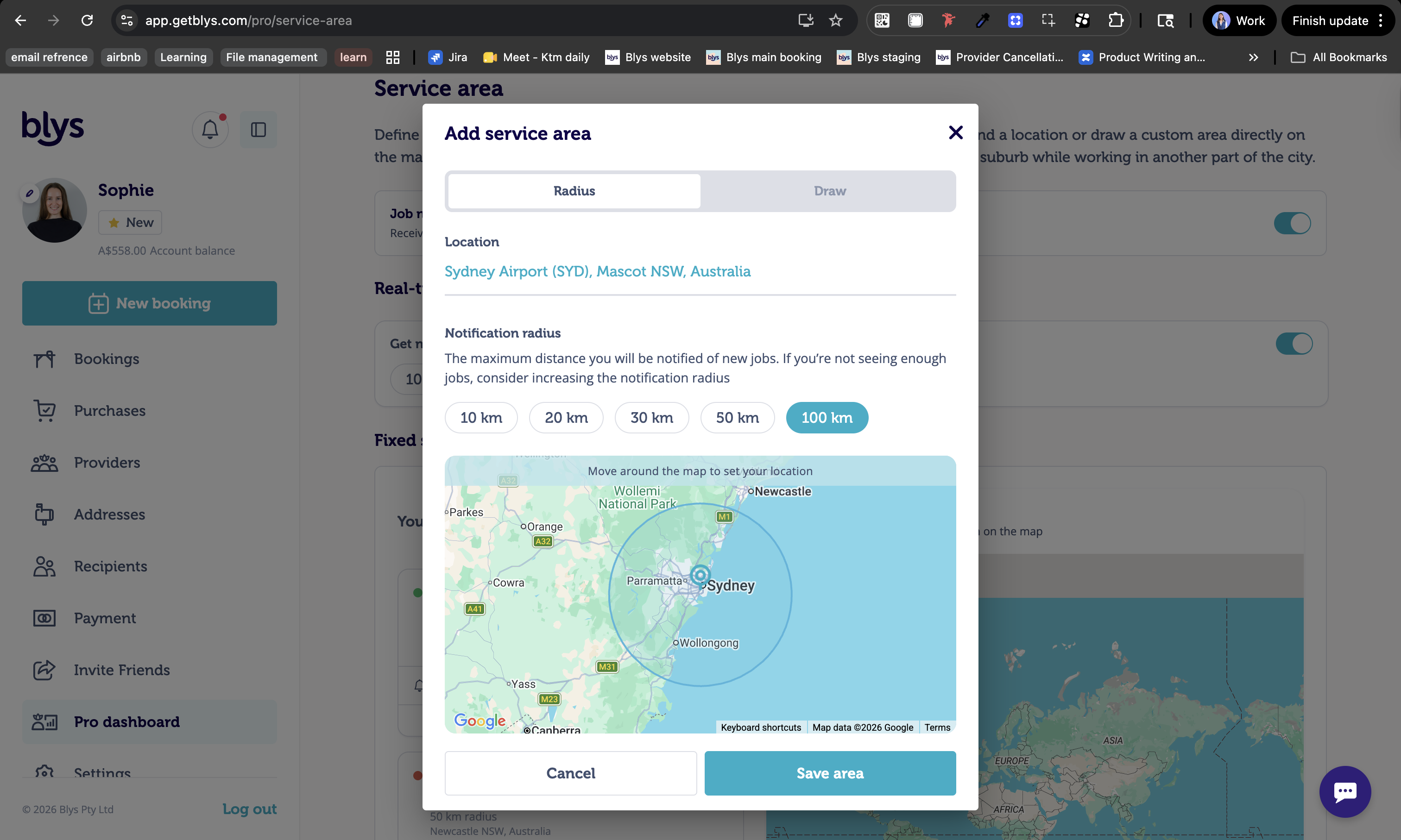
2. Click on to 'Radius' and enter the location you want to use as the centre of your service area
How to draw fixed service area on a map (Web app)
1. Go to Fixed service area and select 'Add service area'
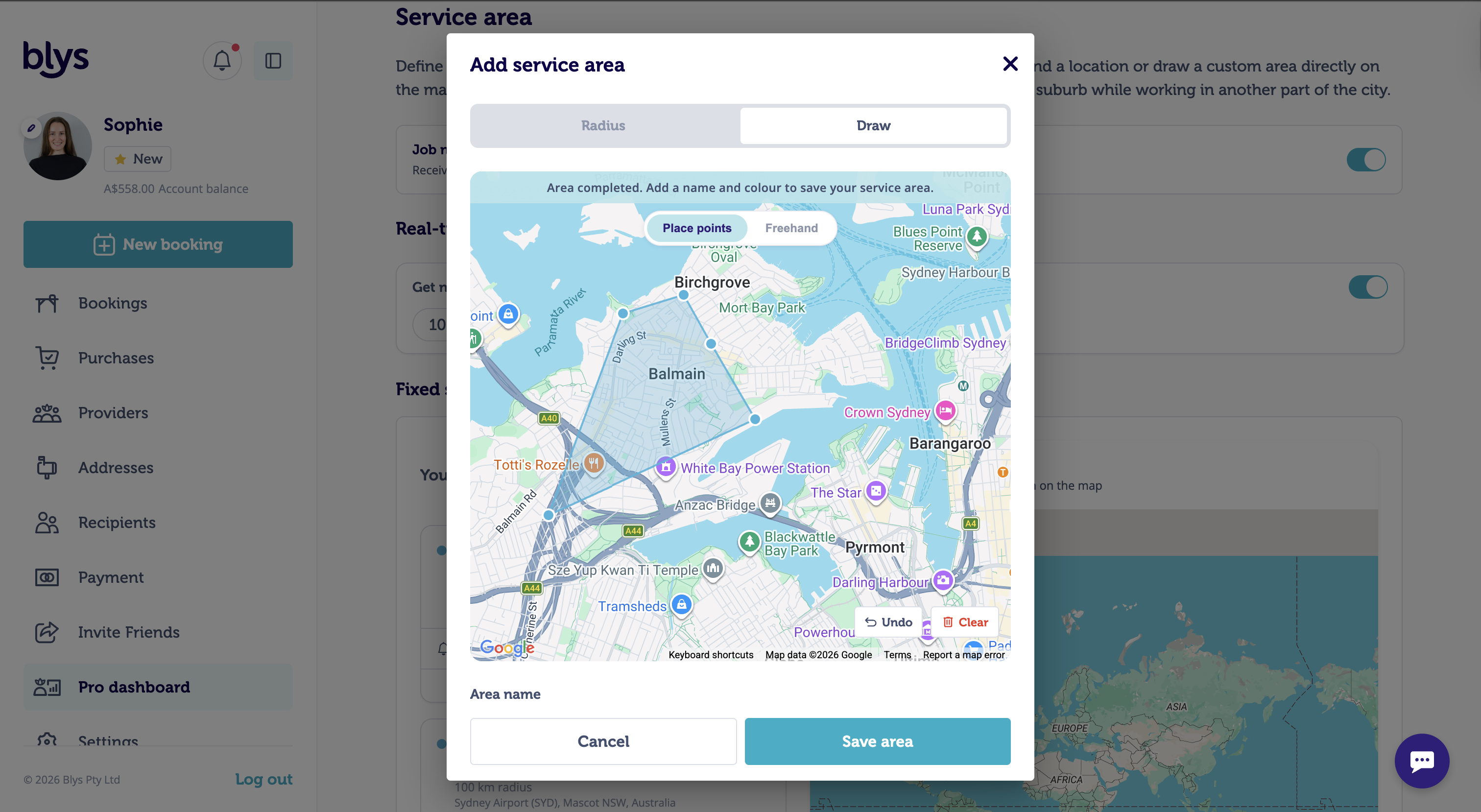
2. Choose 'Draw'
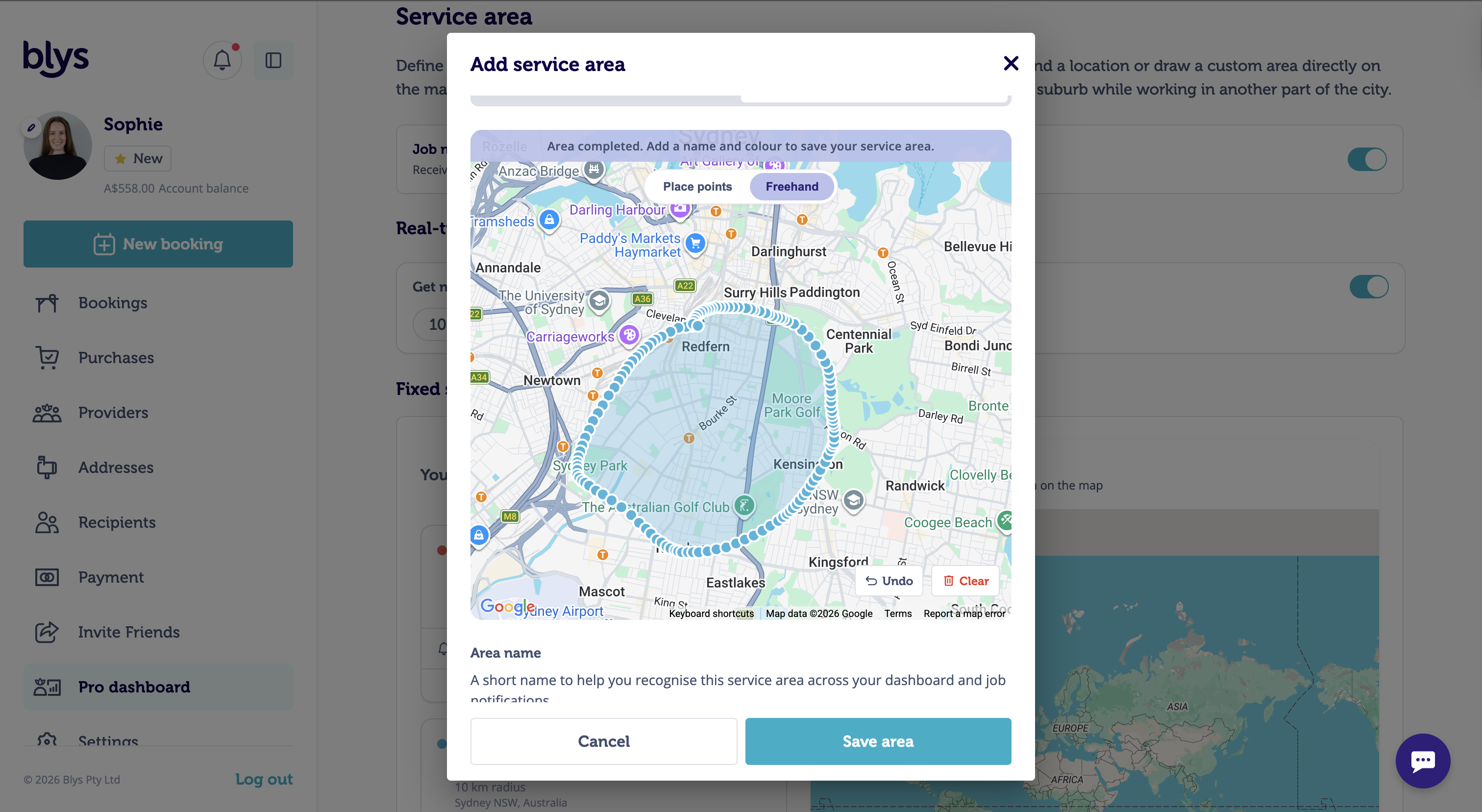
3. Use one of the drawing options:
- Click on the map to add points around the area you want to service. Connect the points to create your service area.
- Draw directly around the area you want to service.
Mobile App
- Log into your Blys Pro account > Pro Dashboard > Service Area
- Under the "Service area" section, you can update your preferred service area to:
- Real-time service area | Receive jobs based on your current location: This means you'll be notified of bookings near your current location. You can set up your notification radius to 10km, 20km, 30km, 50km, and 100km.
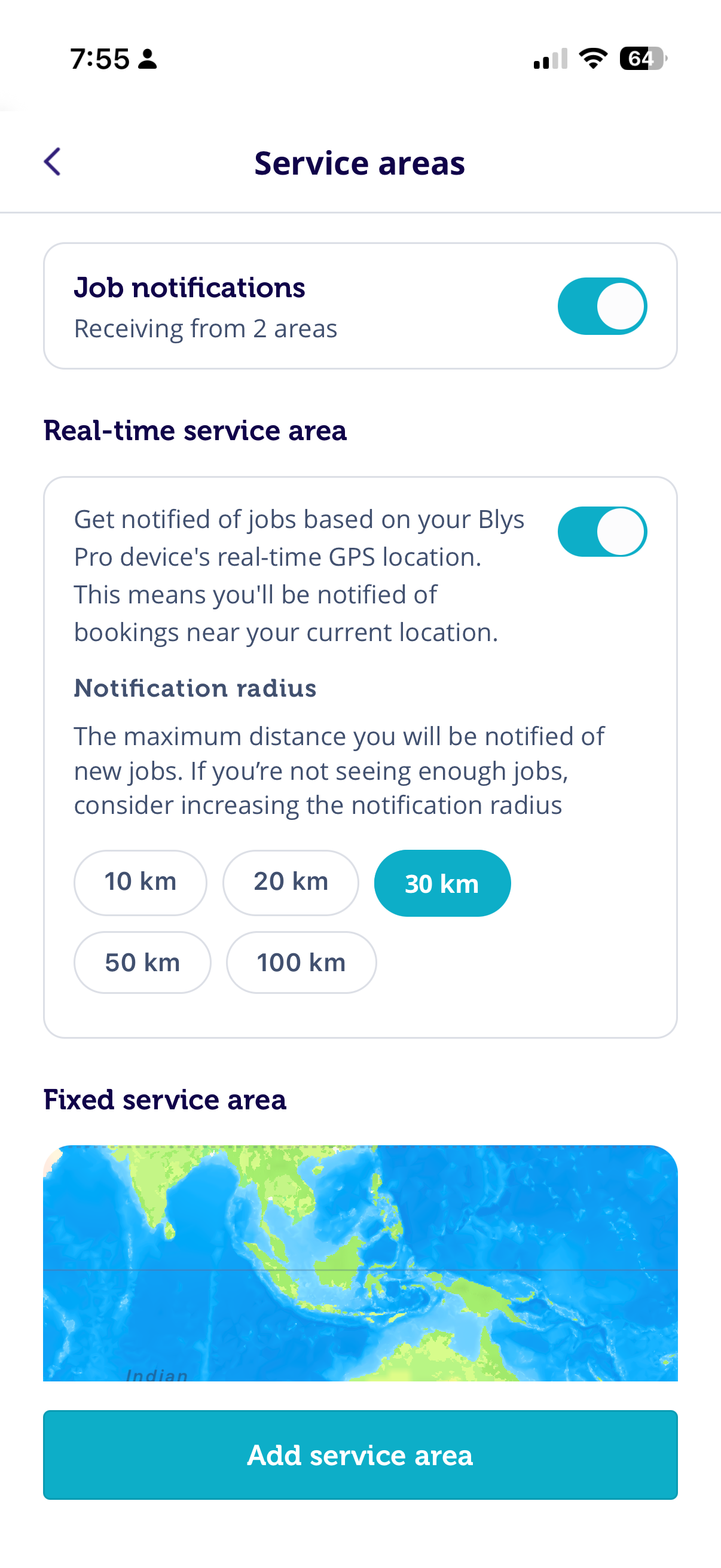
- Fixed service area | Receive jobs based on a fixed location: This means you'll be notified of bookings nearby your chosen location, even if you're on another job in a different city.
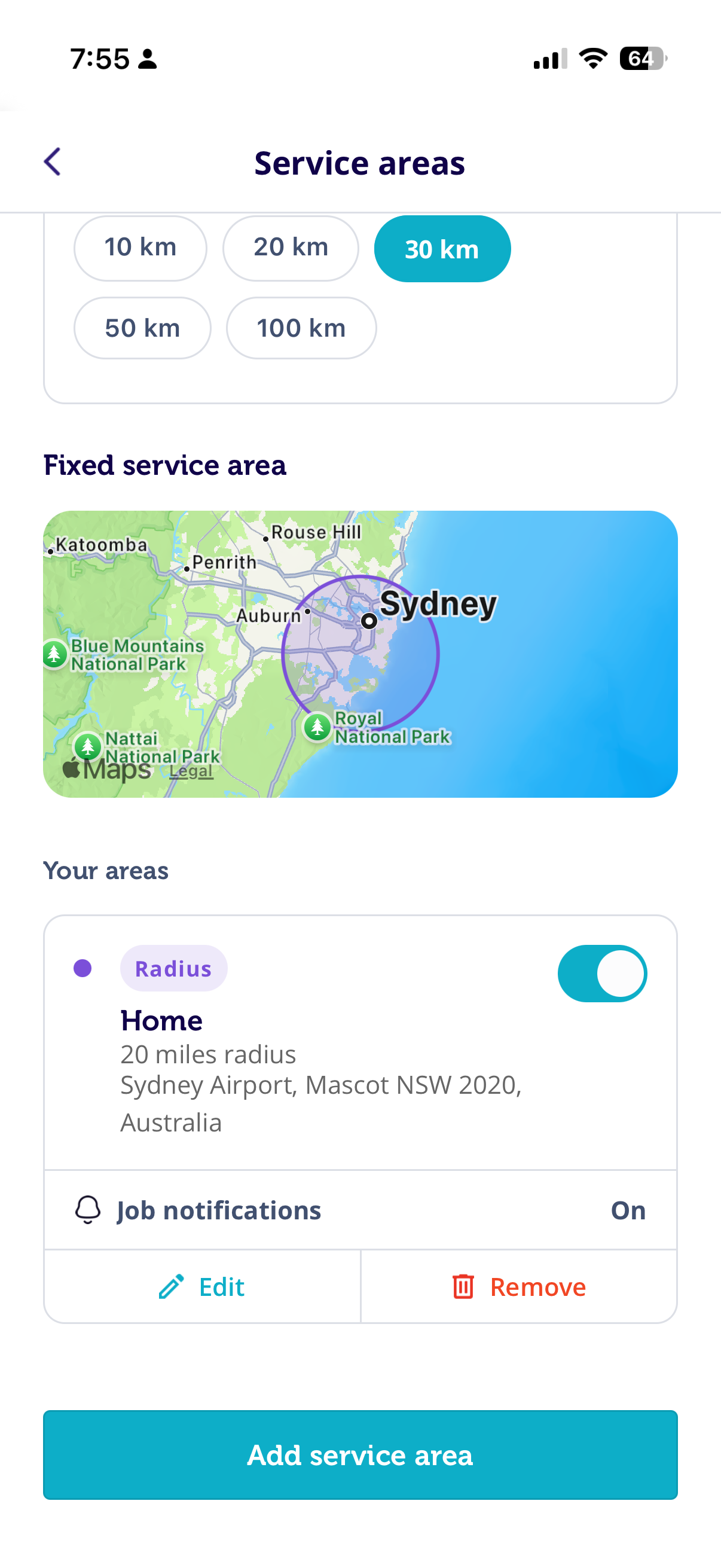
How to add fixed service area on a map
- Go to 'Fixed service area' and click on 'Add service area'
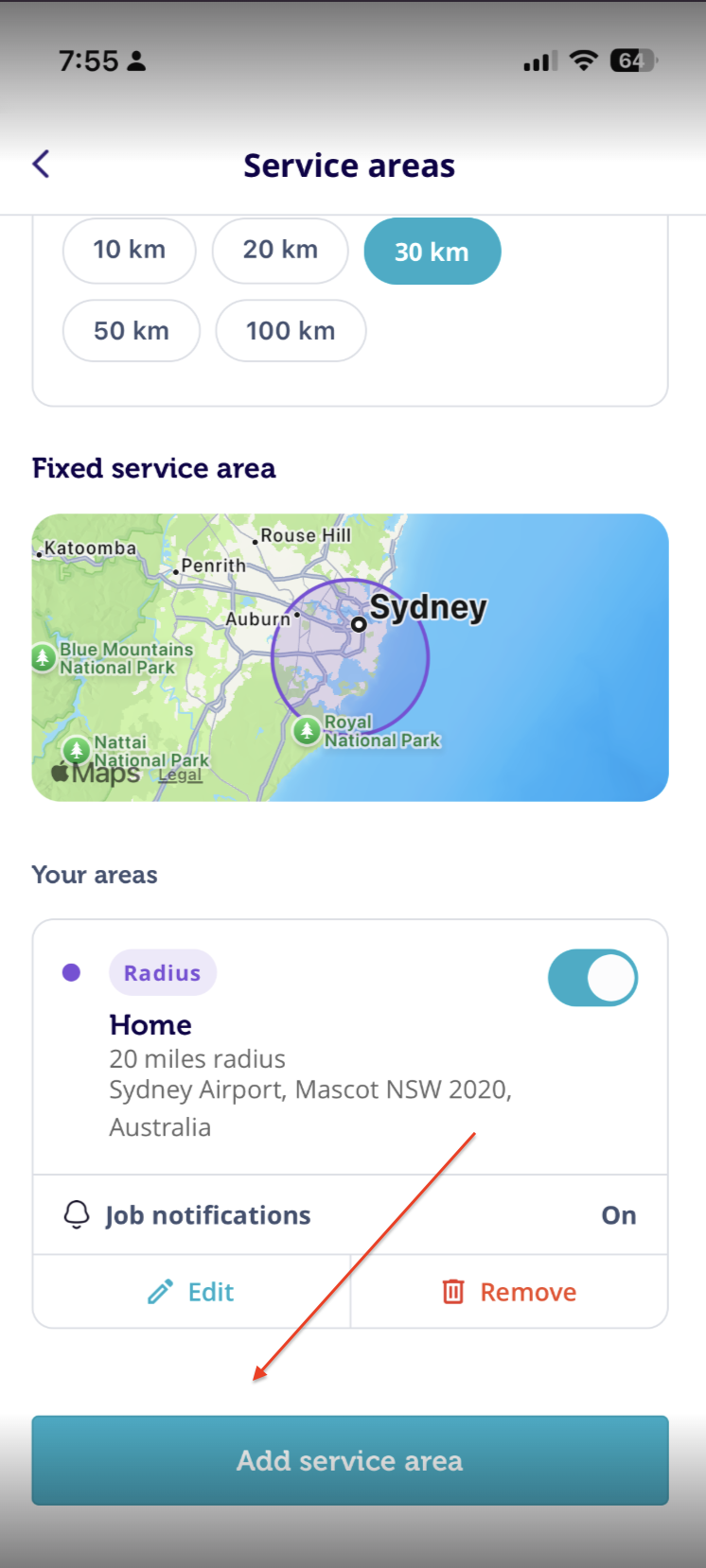
2. Select 'Radius' and enter the location you want to use as the centre of your service area.
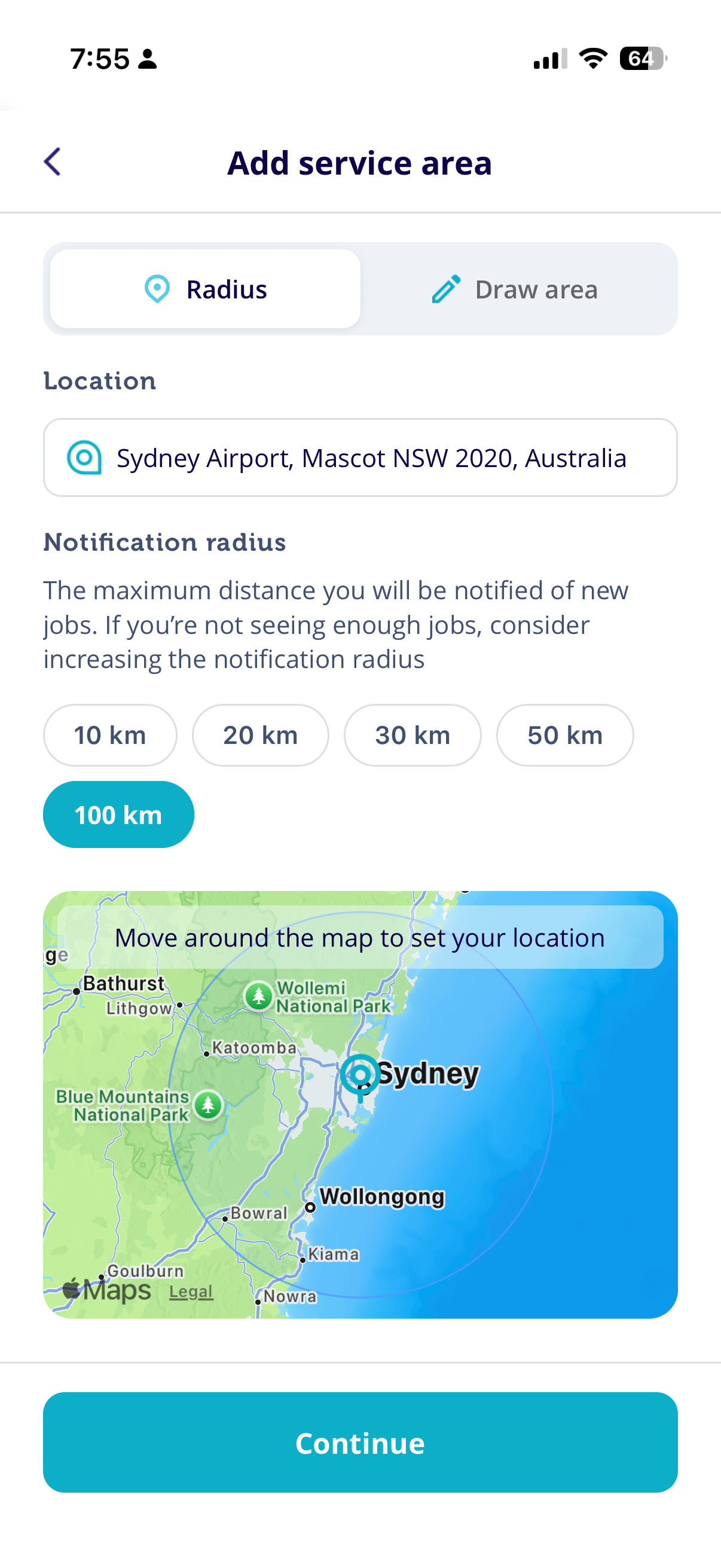
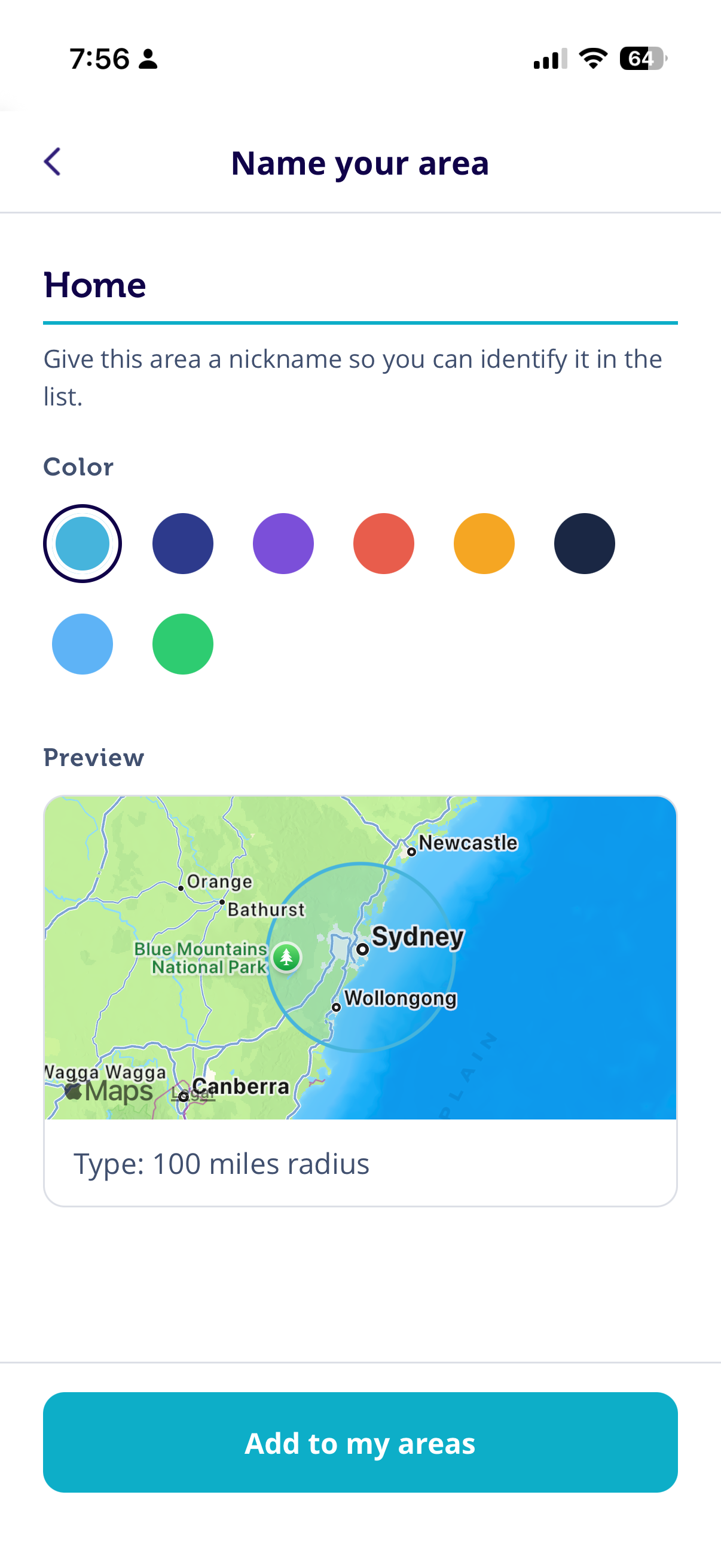
How to draw fixed service area on a map (Mobile app)
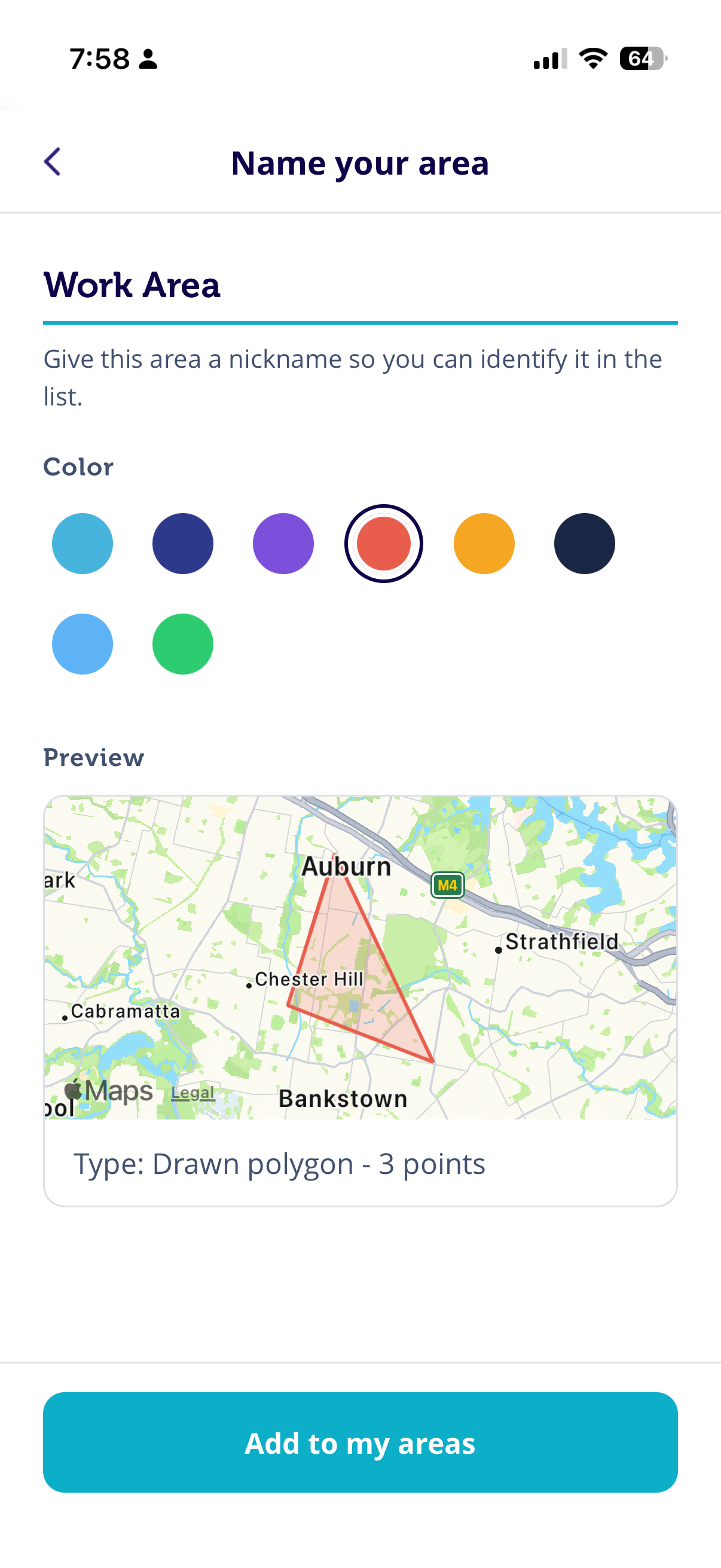
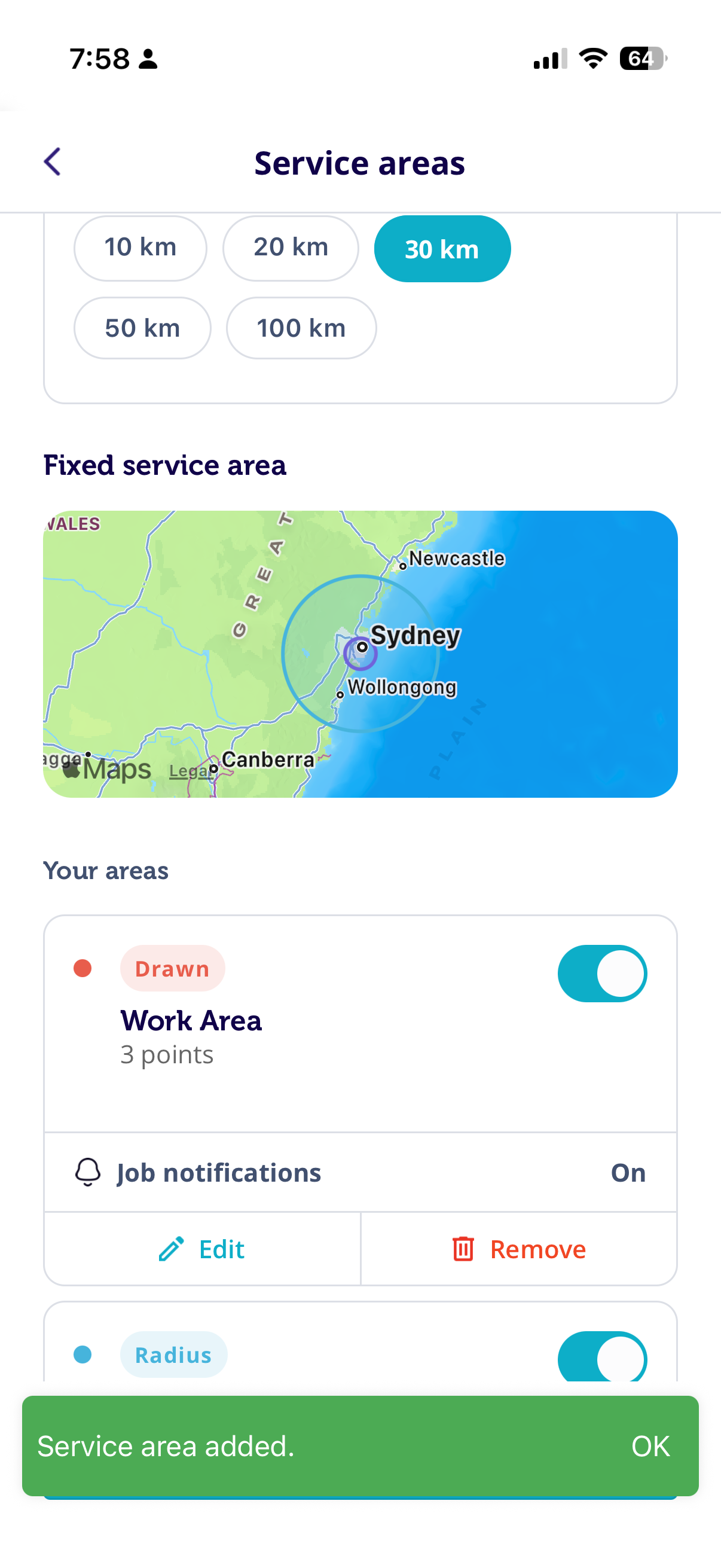
1. Go to 'Fixed service area' > 'Add service area' > 'Draw area' and tap points directly on the map to outline the area you want to service.
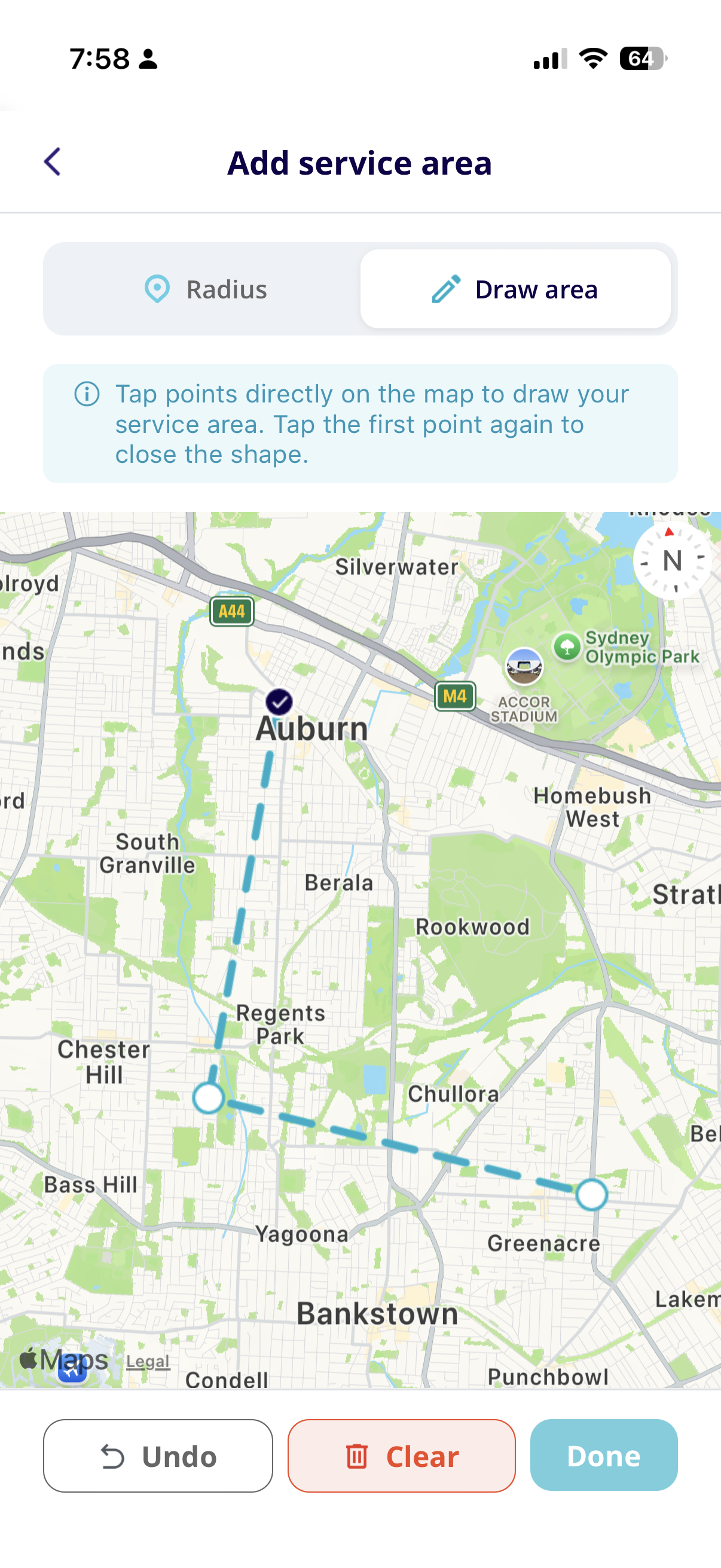 2. Tap the first point again to close the shape. Then click 'Done' so you can type in the area name, choose a colour so you can easily identify this service area on the map and then tap 'Add to my areas'.
 |  |
Note: Choosing none of the options would show a warning that you won’t receive any job notifications
Was this article helpful?
That’s Great!
Thank you for your feedback
Sorry! We couldn't be helpful
Thank you for your feedback
Feedback sent
We appreciate your effort and will try to fix the article