TABLE OF CONTENTS
For Service Providers:
Via the Blys Website:
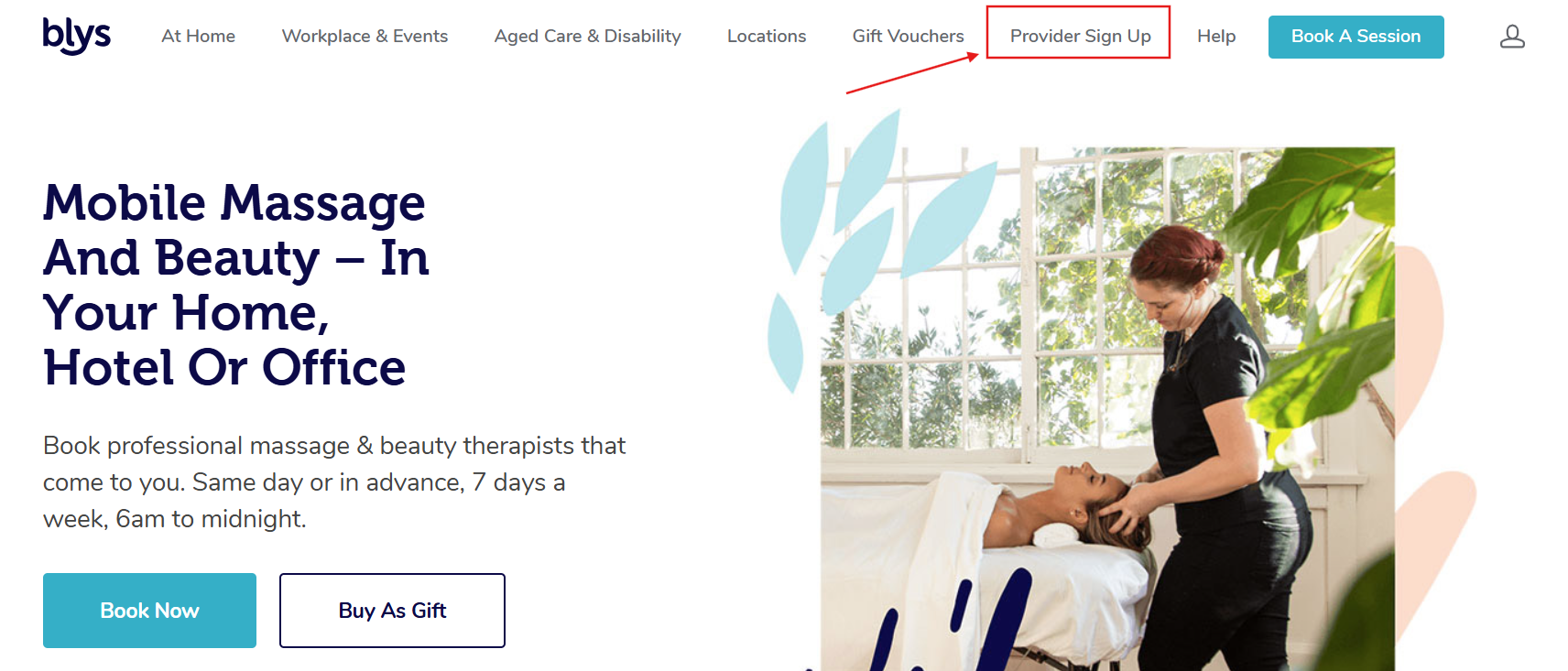
- Navigate to the Blys website and click on "Provider Sign Up".
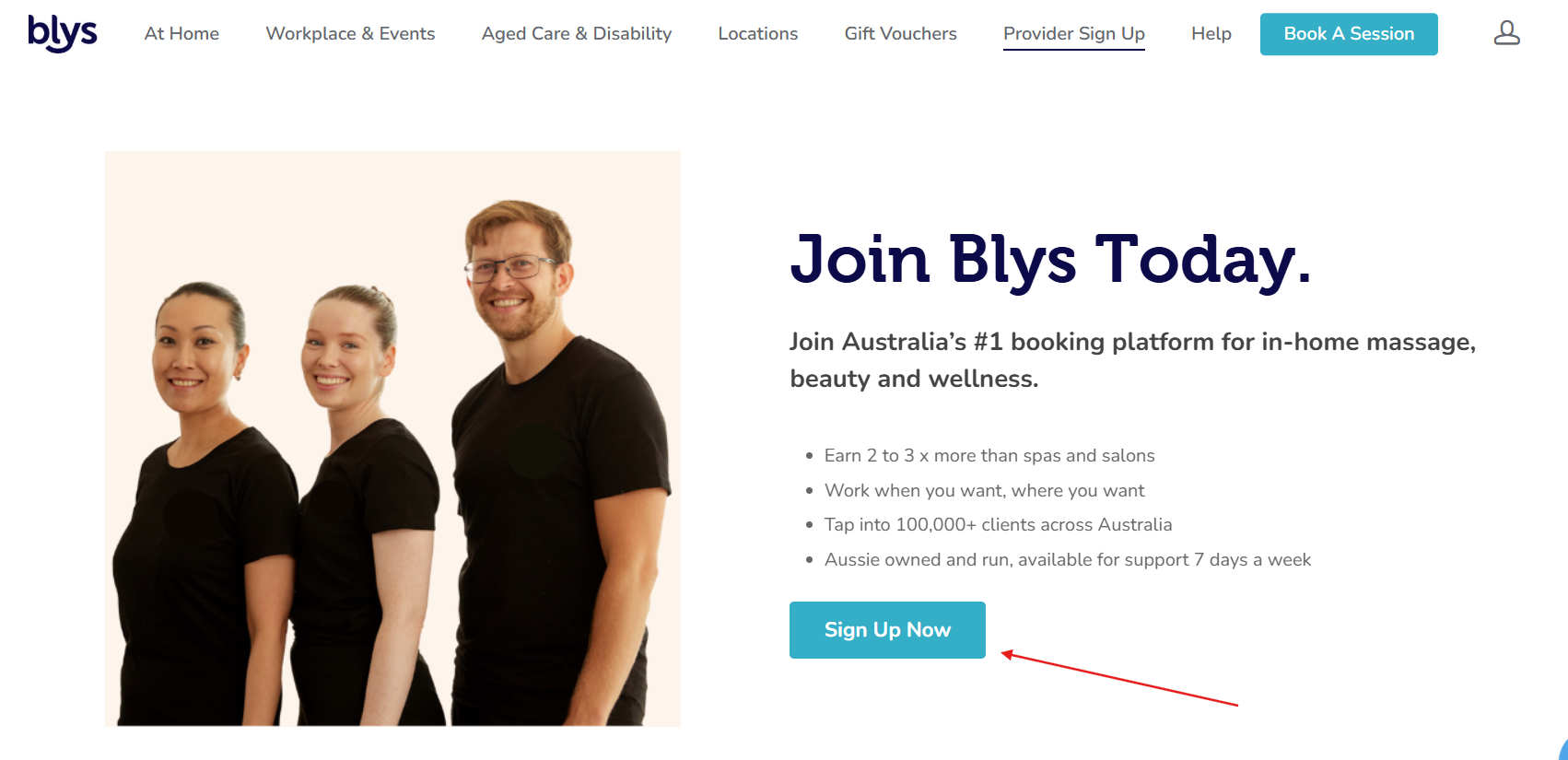
- Click on "Sign Up Now"
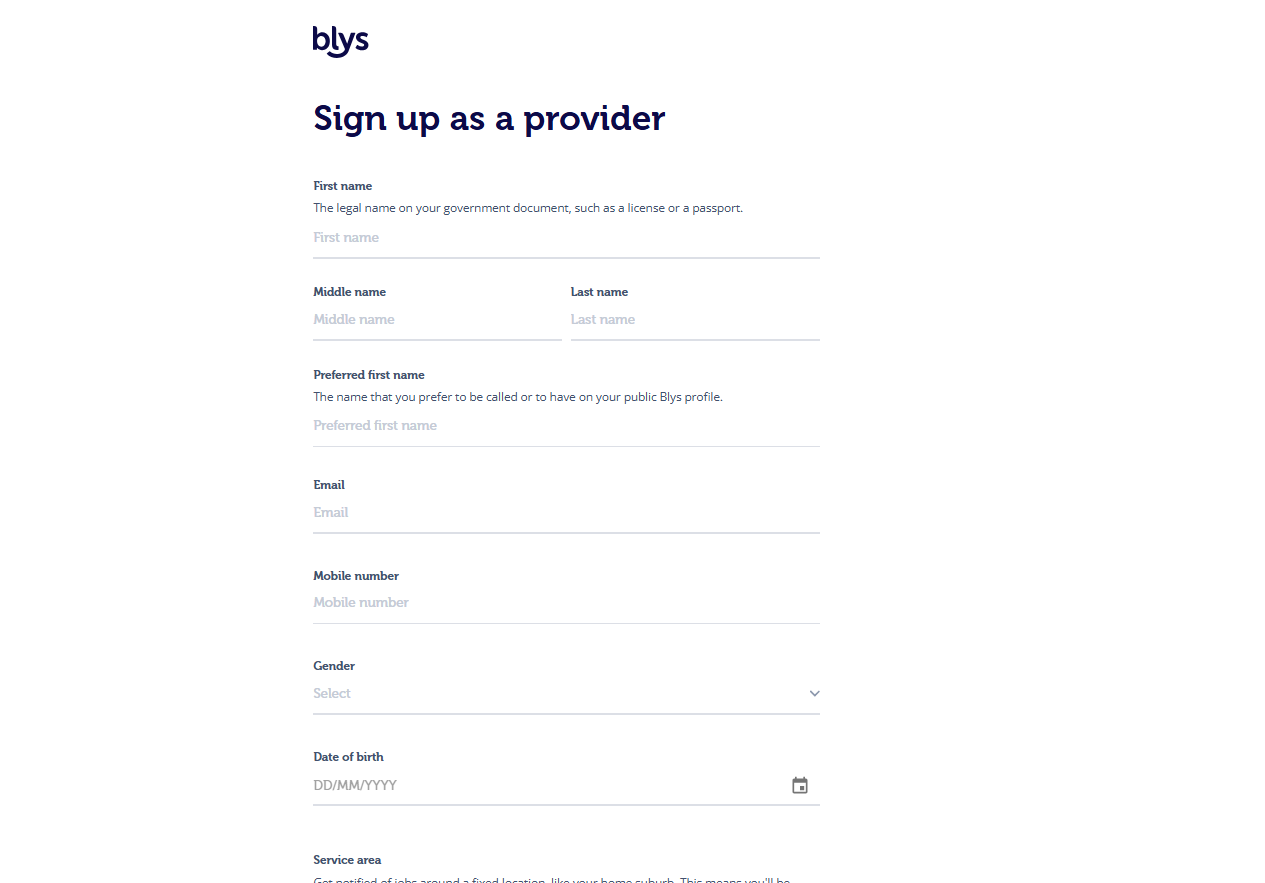
- Fill out the application form with your details and submit the required documents.
- Submit your application for review.
- Wait for the Blys team to review your application and contact you with further steps, or alternatively, reach out to our provider success team at provider-success@getblys.com.
Via the Blys Pro App:
- Download the Blys Pro app from the App Store or Google Play Store.
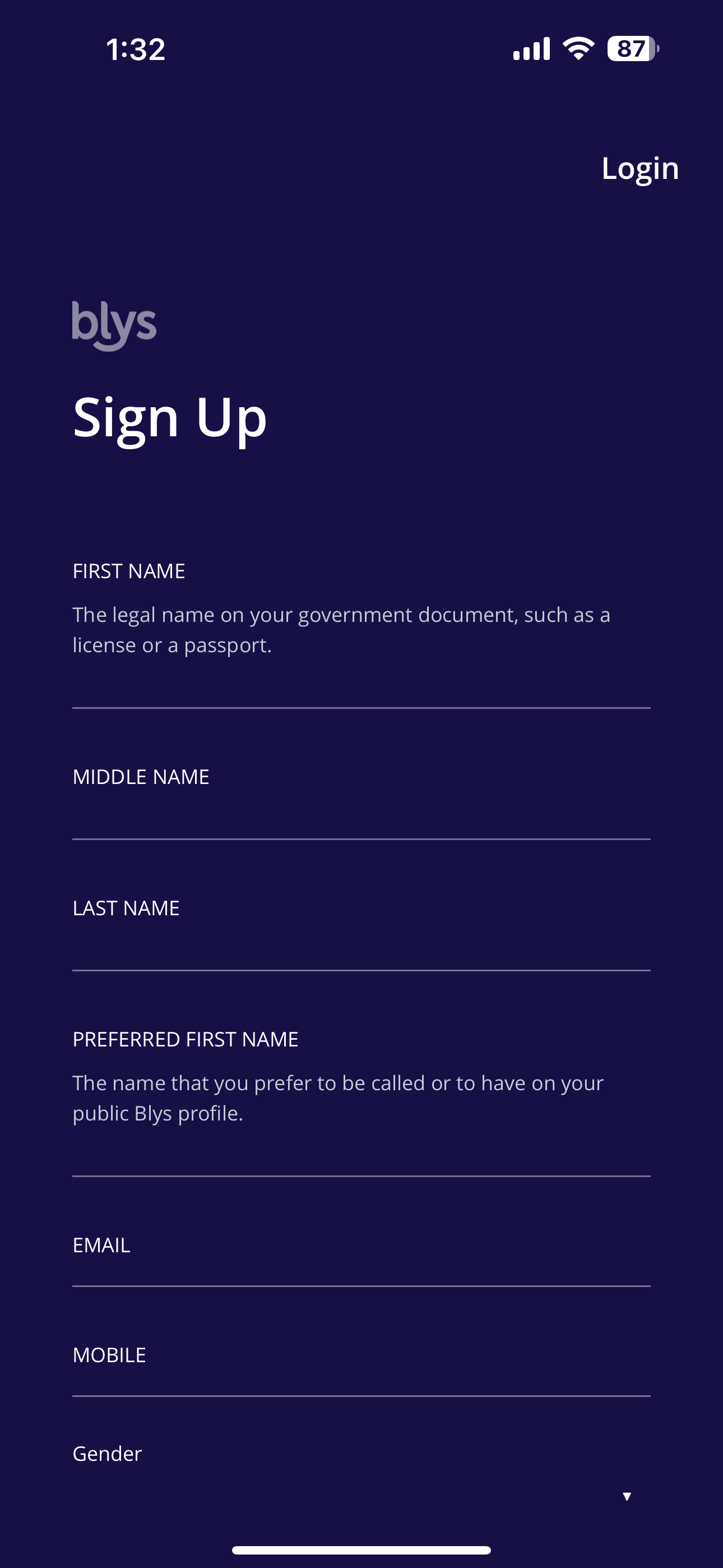
- Open the app, enter your personal and professional details as prompted.
- Upload the necessary documents, such as your qualifications and identification.
- Submit your application for review.
- Wait for the Blys team to review your application and contact you with further steps, or alternatively, reach out to our provider success team at provider-success@getblys.com.
 | 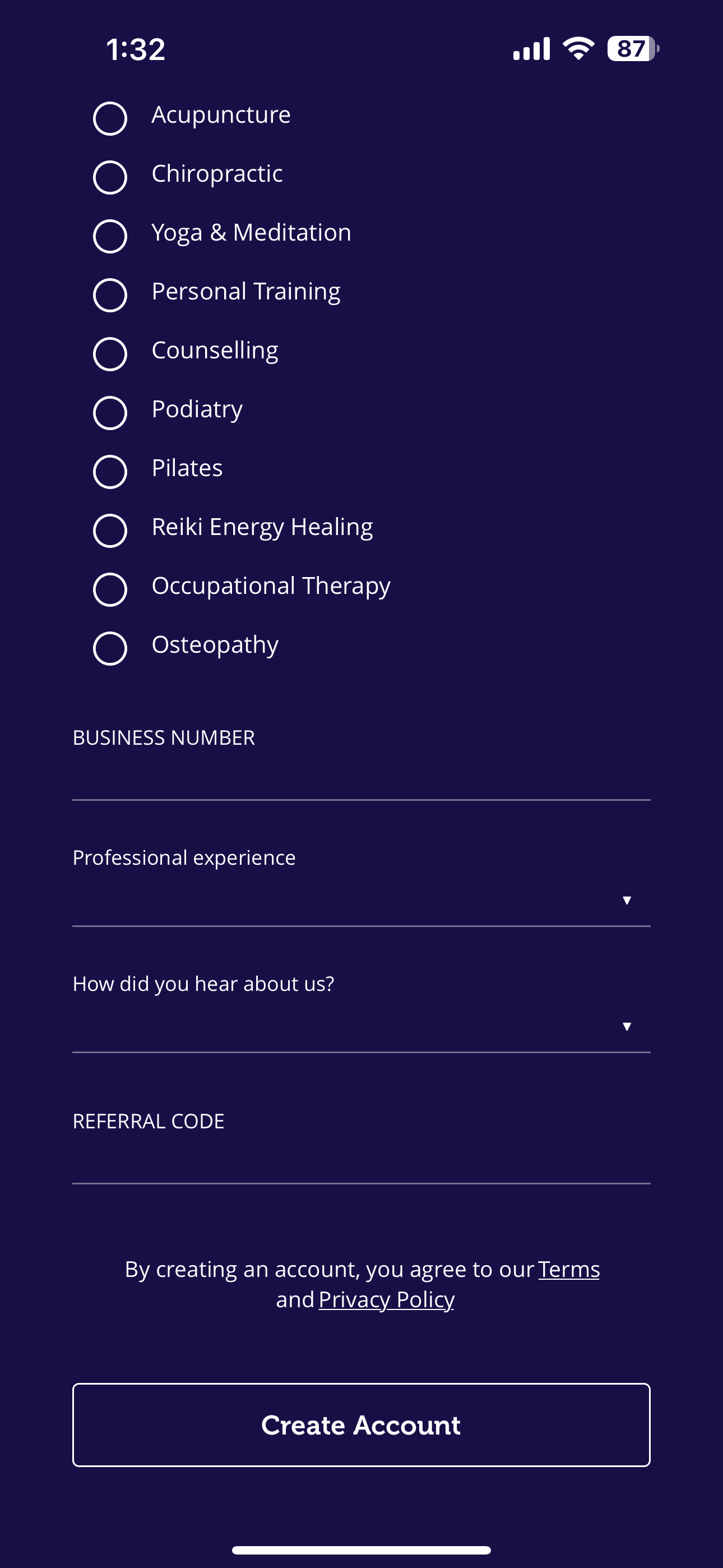 |
You can refer to How do I add or update my services and documents? for more information on how to add your documents after you have completed the signup process.
Note: Please ensure that all information provided is accurate and that you have access to the email address used for registration, as important communications are sent there.
If you encounter any issues during the sign-up process or have further questions, please visit our Help Center for assistance or contact our team.
Setting Your Location During Registration
When signing up via the Blys Pro App or the Blys website, your current location can be automatically detected to pre-fill your service area. This saves time during registration and ensures your profile is set up for the right city from the start.
When prompted to choose your location during sign-up:
- Click or tap Use My Current Location to auto-detect your city, or
- Search and select your location manually from the list.
If the detected location isn't correct, you can change it by selecting a different city from the list. You can also update your default location at any time after signing up from Profile → Business → Service Area.
Note: For location auto-detection on the Pro App, make sure your phone's location permissions are enabled for the Blys Pro App.
Was this article helpful?
That’s Great!
Thank you for your feedback
Sorry! We couldn't be helpful
Thank you for your feedback
Feedback sent
We appreciate your effort and will try to fix the article